Rayo
A faster Illustrator to After Effects workflow.
Rayo is a workflow toolset designed to streamline the Adobe Illustrator to Abebe After Effects pipeline.
It focuses on preserving structure, accuracy, and editability—so artwork arrives in After Effects clean, organised, and ready for animation.
By reducing manual rebuilding and cleanup, Rayo helps motion designers move faster from design to motion while keeping full creative control.
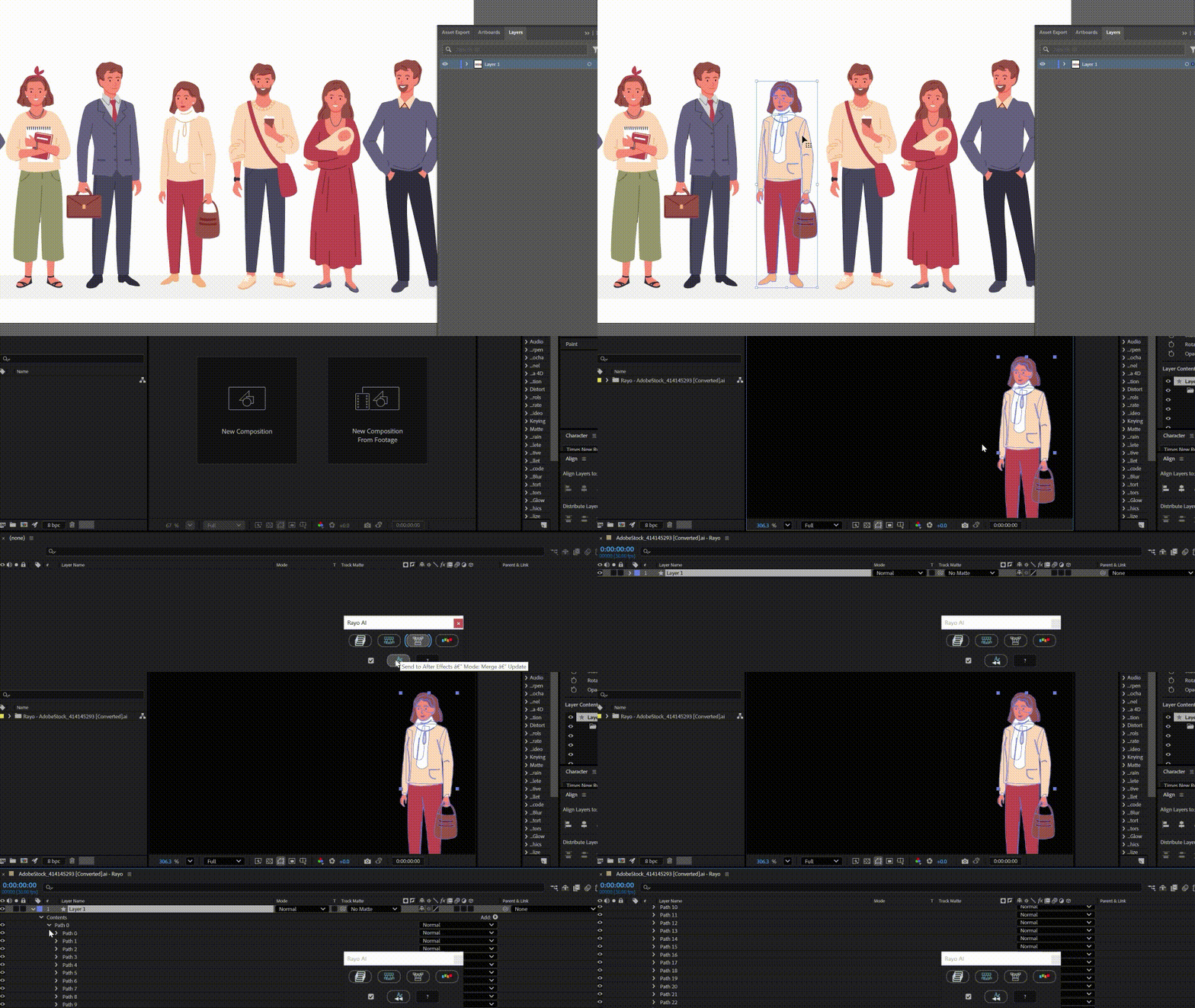
Merge mode
Combine complex Illustrator artwork into clean, organised After Effects layers. Merge mode intelligently preserves groups, gradients, and structure—ready for animation without the cleanup.
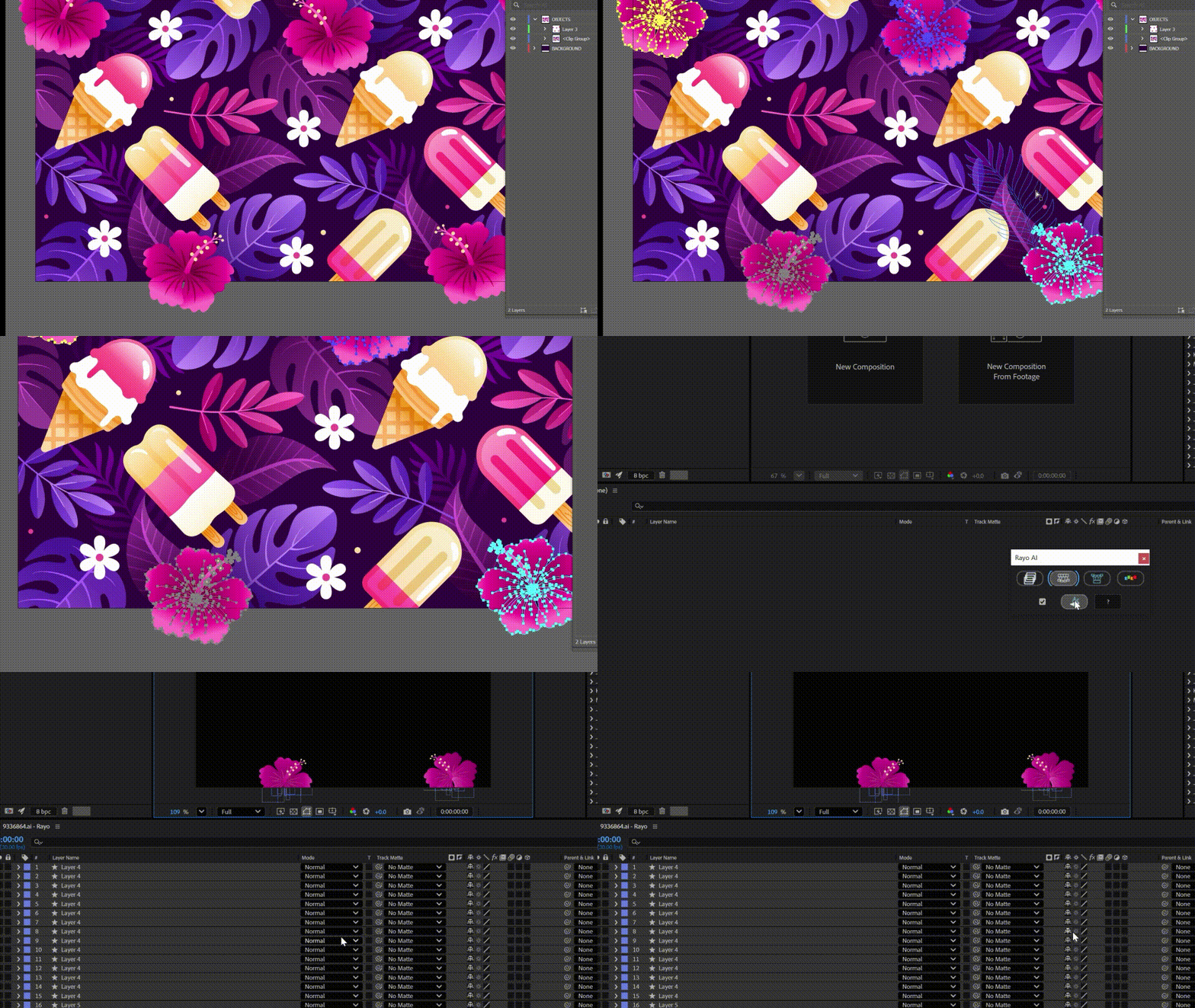
Split mode
Break Illustrator artwork into individual, animation-ready layers with precision. Split mode gives you full control over every shape, group, and element inside After Effects.
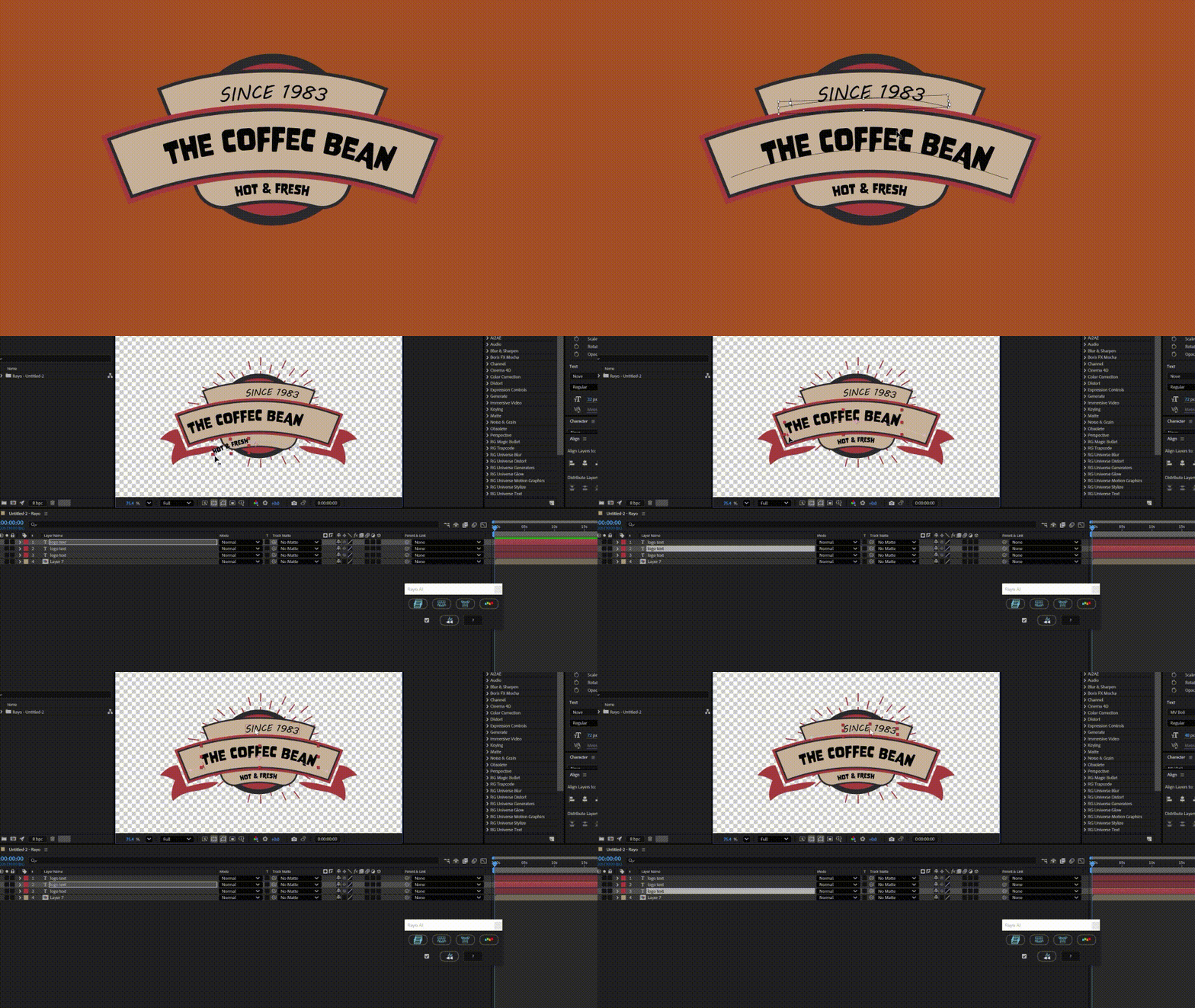
Text transfer
Transfer Illustrator text directly into After Effects as fully editable text layers. Fonts, alignment, and hierarchy are preserved for seamless motion design workflows.
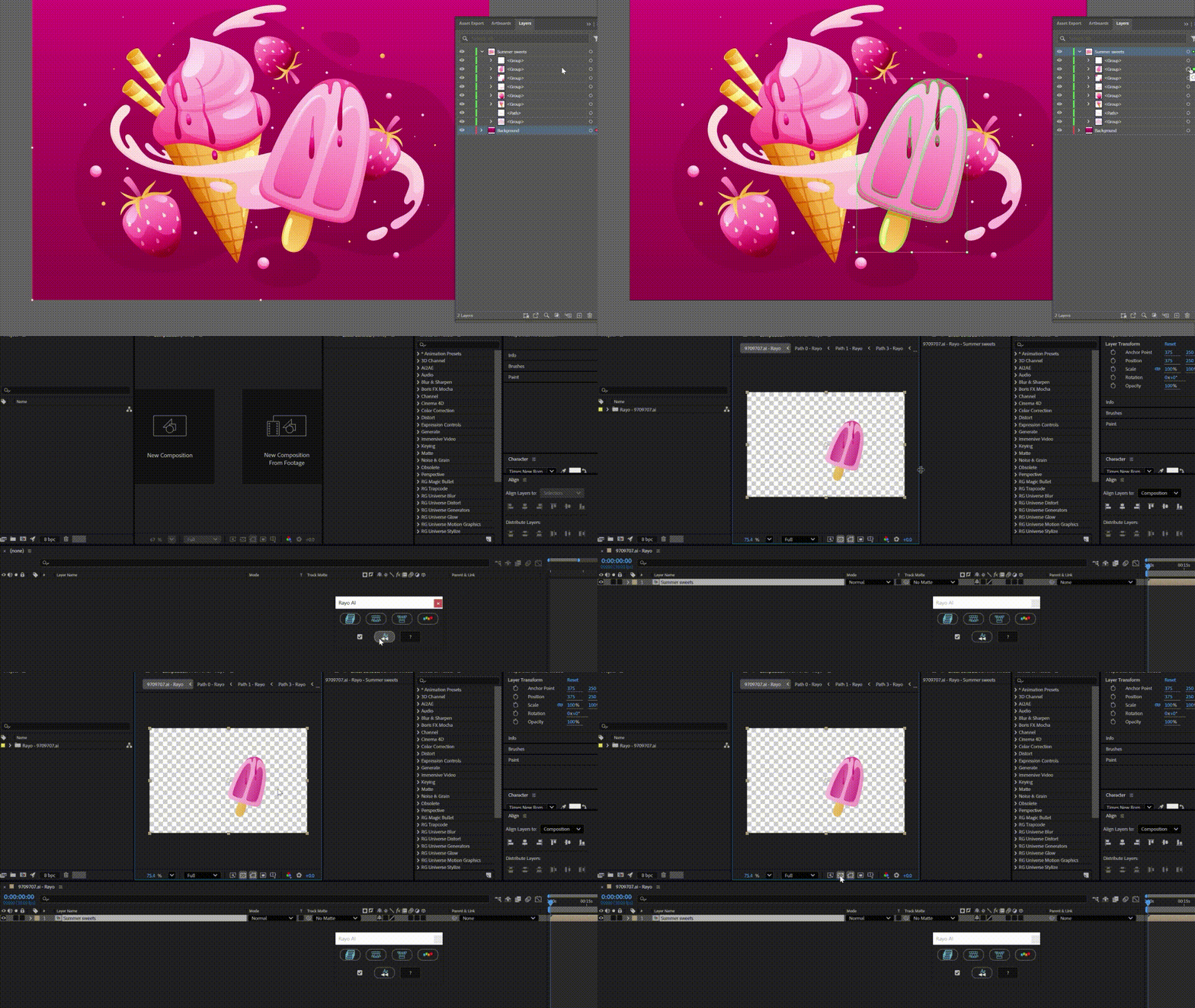
Ramp support
Recreate Illustrator gradients inside After Effects with accurate color stops and direction. Ramp mode converts complex gradients into motion-ready gradient ramps—no rebuilding required.
Rayo AE extra tools
Rayo AE includes a set of built-in utility tools designed to speed up common After Effects tasks. These helpers remove repetitive setup work, fix common issues, and keep your workflow focused on animation.
-
Crop – Crops layers or compositions to their visible content for clean bounds and tighter comps.
-
Null – Creates a controller null linked to selected layers for centralised animation control.
-
Anchor Point – Automatically positions anchor points based on layer content for accurate transforms.
-
Uncomp – Breaks precompositions back into their original layers for quick access and edits.
-
Recenter / Reset – Resets transforms and alignment to predictable defaults.
-
Batch Helpers – Applies utility actions to multiple layers at once to speed up cleanup tasks.
